
Blog
July 25, 2025
Running MCP Servers on Noop
 Derek Wolpert
 Using Noop to Develop and Deploy MCP (Model Context Protocol) Services.
Why Deploy MCP Servers?
With all the attention on generative artificial intelligence (AI) over the past few years, it wasn’t surprising that one of the most significant developments within the AI space, Model Context Protocol (MCP), was largely overshadowed upon its initial announcement. Revealed by Anthropic in November 2024, MCP serves to provide an open-source protocol for how large language models (LLMs) can integrate with external services, effectively establishing a standardized framework for how applications can interface with AI systems. Several months later, adoption of the standard has grown, and it is now abundantly clear that MCP is here to stay.
At Noop, we’re excited about how our platform can accelerate software delivery, and this benefit can be immediately leveraged by AI applications utilizing MCP patterns on our platform. We thought now would be a great opportunity to update one of our earliest template applications to contain an MCP server in order to demonstrate just how easy it is to get up and running with MCP on Noop.
Adding an MCP Server to Your Noop Application
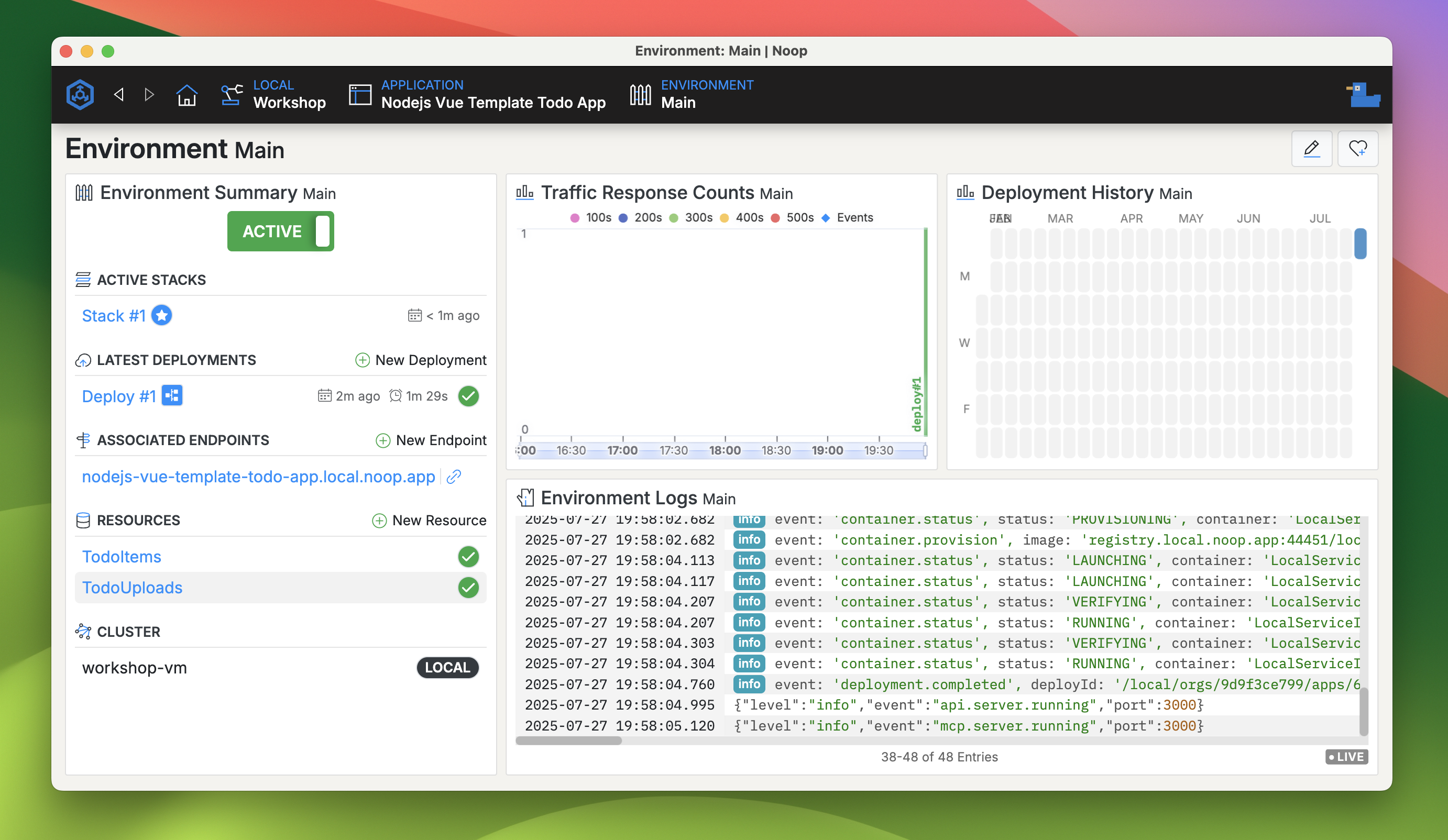
As a starting point, our template is a simple todo list application with CRUD operation functionality. The application contains two components: a Vue.js-based static component named TodoWebsite and an Express.js-based service component named TodoApi. The application utilizes two resources: a DynamoDB resource named TodoItems and an S3 resource named TodoUploads. Data state for the todo list is persisted within TodoItems and TodoUploads, while TodoWebsite and TodoApi facilitate the retrieval of that data.
In order to add MCP support, we decided to add an additional service component named TodoMcp to our existing template. Thankfully, the repository for the official MCP TypeScript SDK contains several examples of Express.js being used in tandem with their package, so we were able to use those examples as a reference for adapting our existing TodoApi service component to be compatible with the MCP Server interface.
One of the most notable changes needed involved transforming a set of route-based APIs defined within the TodoApi service component to utilize an MCP feature known as tools. Tools currently serve as the primary mechanism for how MCP servers expose their functionality to external AI systems and MCP Clients. In this case, we defined six tools - listTodos, retrieveTodo, addTodo, modifyTodo, removeTodo and retrieveImage - which collectively mirrored the functionality exposed by the TodoApi service component.
Interfacing with an MCP Client
Before connecting to an MCP client, you’ll need to launch the template application within either Noop Workshop for local development or Noop Cloud. Check out our dedicated guide for launching the template for further details on how to get started within either environment. You’ll also need access to an MCP client. The feature sets of MCP clients are developing at a rapid pace, so for this example we’ll focus on one of the predominant clients available, Claude Desktop. Check out Anthropic’s guide for how to connect to MCP servers with Claude Desktop for further details.
Once you have access to a running version of the template, you’ll need to update Claude Desktop’s configuration file located at either ~/Library/Application Support/Claude/claude_desktop_config.json on Mac or %APPDATA%\Claude\claude_desktop_config.json on Windows with the following content. Please note, the URL listed below will need to be adjusted if your template is exposed at a different endpoint.
{
  "mcpServers": {
    "noop-todo-app-mcp-server": {
      "command": "npx",
      "args": [
        "mcp-remote",
        "https://nodejs-vue-template-todo-app.local.noop.app/mcp"
      ]
    }
  }
}
Now open or restart Claude Desktop for the updates to its configuration to take effect. Now you’re ready to connect to the template’s TodoMcp service component and exercise its capabilities. Let’s walk through a simple example with the Todo app running in Noop Desktop.
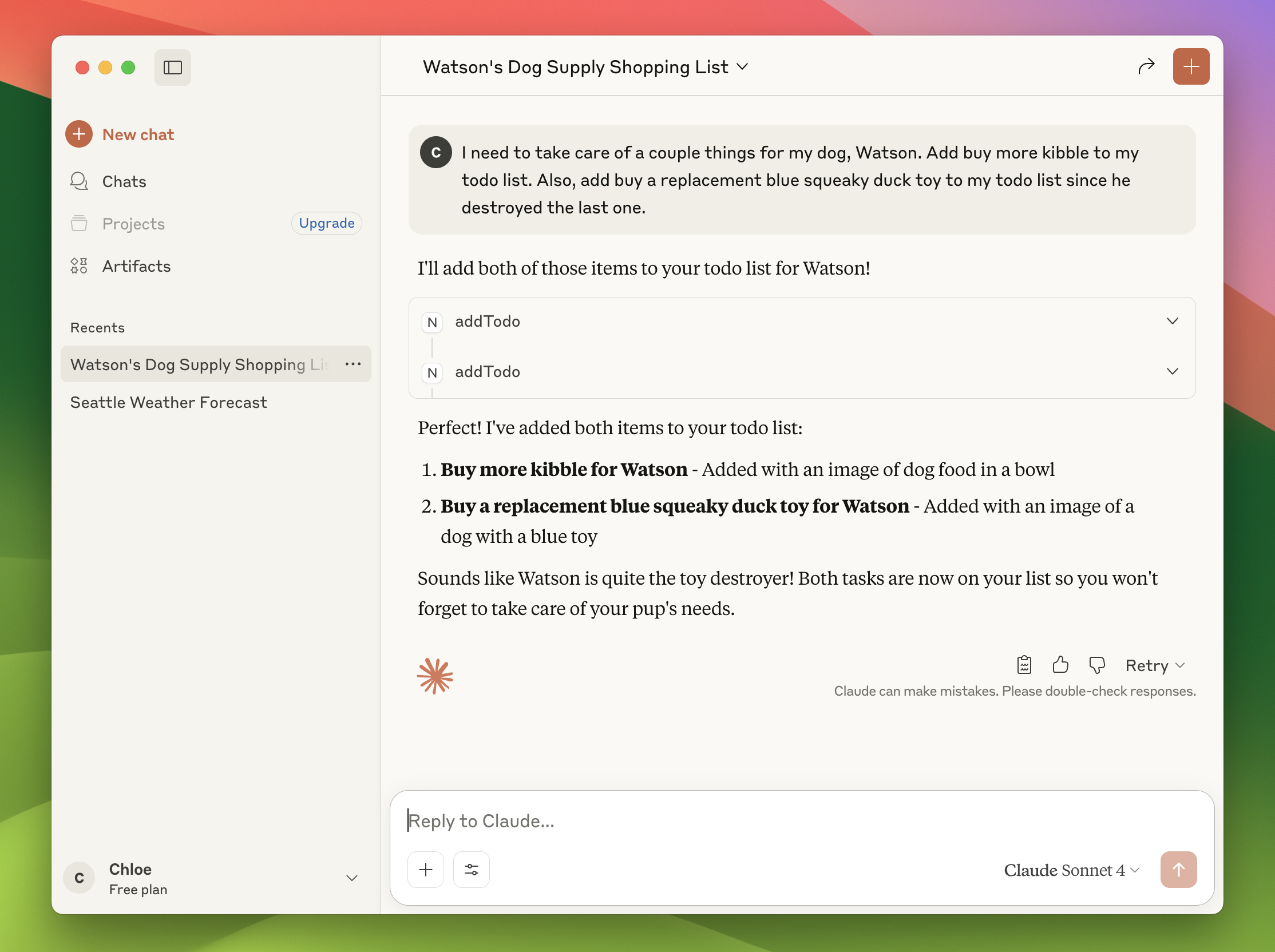
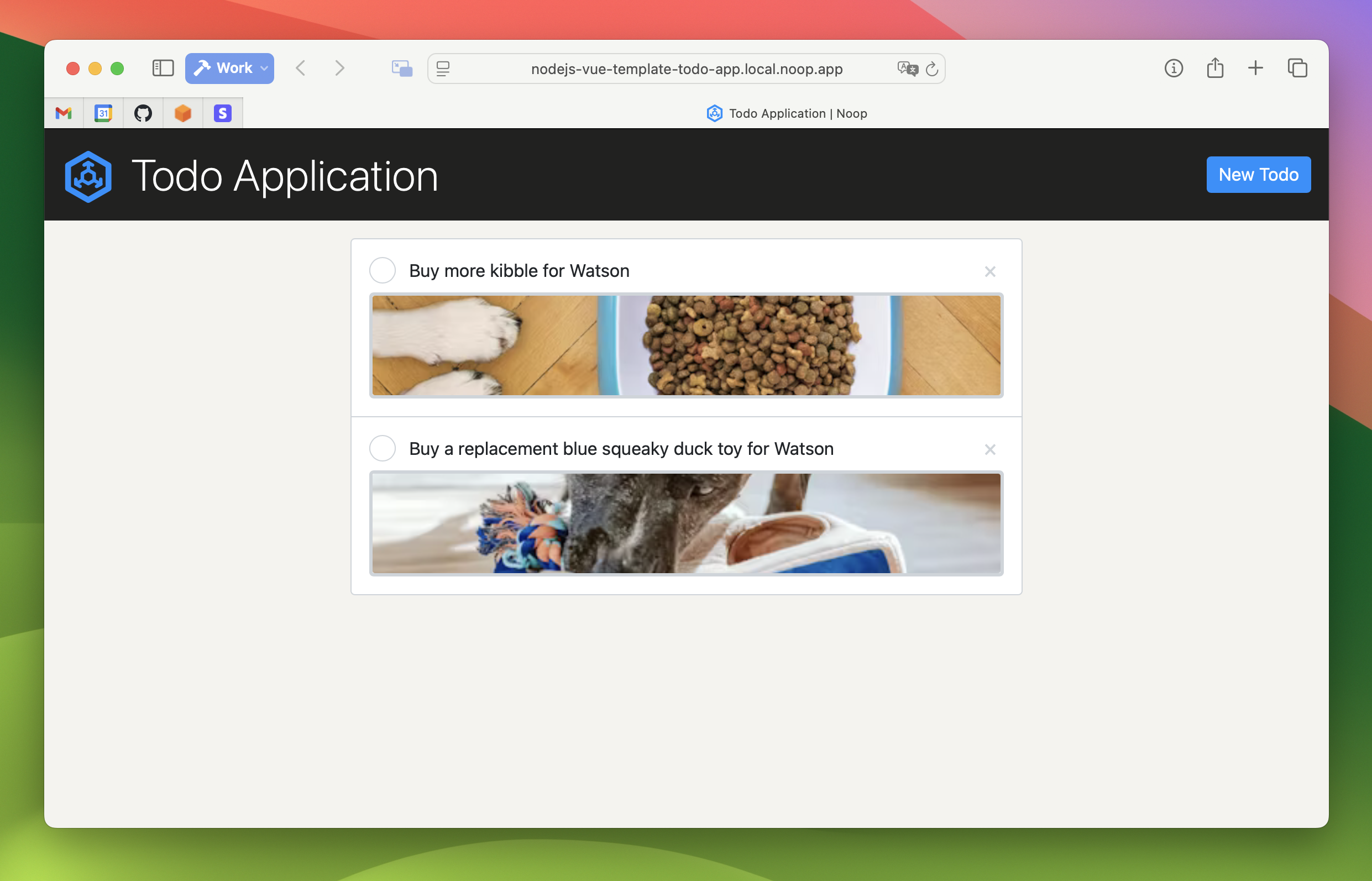
We’ve asked Claude to add several todo items to our todo list. You can verify the new todo items have been added to the application’s data state through its website interface, also running via Noop Workshop.
Inspecting MCP Usage in Noop
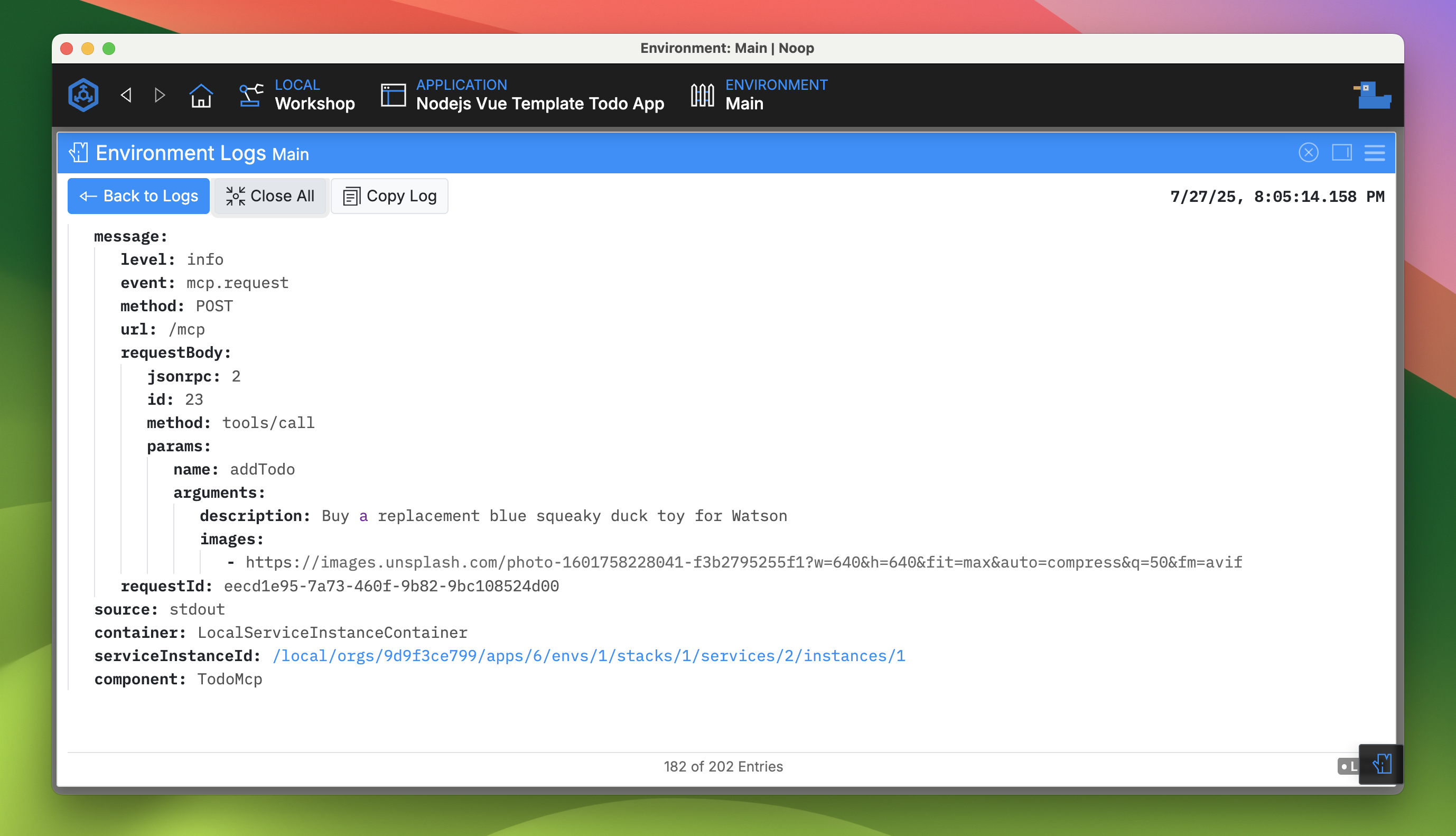
Noop aggregates all the details of your running software within a unified Environment Logs panel, and the TodoMcp service component has been configured to output data in a format that maximizes this functionality. Here you can see how easy it is to inspect and debug requests and responses between the MCP server and client.
Deploying Your MCP Server on Noop Cloud
If you haven’t already, try running the MCP template within both Noop Workshop and Noop Cloud. If you haven’t tried Noop Cloud yet, launching this template globally on Cloud is just as easy as running it locally within Noop Desktop. Set up your Organization on Noop Cloud today to see just how seamless the transition from local to production environments can be with Noop.